How to Create a PWA App with React: A Step-by-Step Guide


Key Facts
- A React progressive web app combines a standard React front end with a web app manifest and a service worker, so users can install it, cache it, and use it offline.
- Vite is the fastest way to scaffold one today, mainly because the vite-plugin-pwa package generates the manifest and service worker for you, built on Workbox.
- Chrome, Edge, and most Android browsers install PWAs directly from the browser bar. Safari on iOS needs a manual “Add to Home Screen” step.
- HTTPS is non-negotiable. Service workers don’t register over plain HTTP, except for localhost.
- A Lighthouse score above 90 for the PWA category is a reasonable target before you ship.
No time to read? Listen to the podcast:
(Prefer videos? Watch a summary of this article below.)
If you’ve ever wondered how to create a PWA app with React without rebuilding your whole stack, the honest answer is: you probably don’t have to. Most of the work is additive — a manifest file, a service worker, and a handful of configuration decisions layered on top of the React app you already know how to build.
This guide walks you through that process end to end, from picking your tooling to deploying a production build that passes a Lighthouse audit.
What Is a React Progressive Web Application?
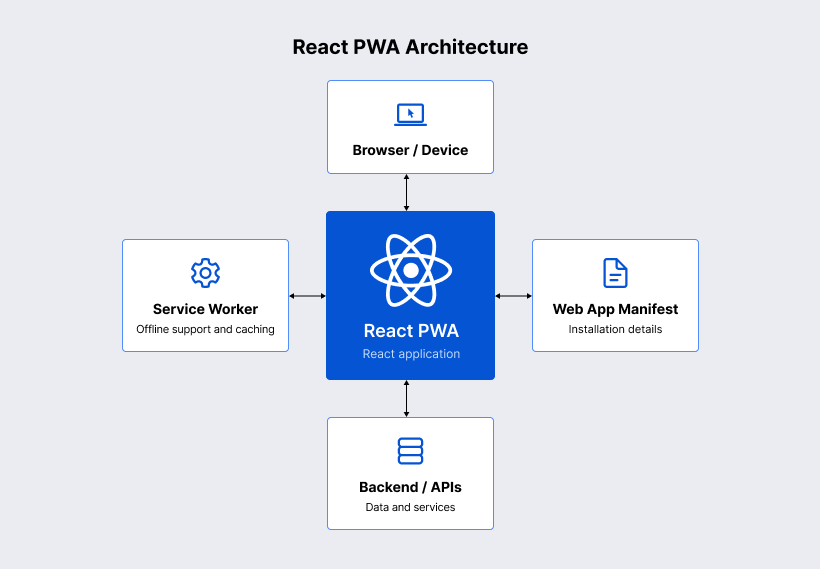
A React progressive web application is a React app enhanced with the browser APIs that make it installable, work offline, and behave like a native app on a phone or desktop. React handles the UI; the PWA layer — manifest plus service worker — handles everything that happens once the network drops or the user taps “Install.”
Core characteristics of progressive web applications
Four traits define a PWA, and a React app has to earn all of them to count:
- It needs to be reliable, loading instantly even on flaky connections thanks to cached assets.
- It needs to be fast, since React’s rendering already helps, but caching removes network latency entirely.
- It needs to be installable, with a manifest that lets the browser add an icon to the home screen.
- It should also be responsive, adapting cleanly from a phone screen to a desktop window rather than assuming one layout.
Many production PWAs go further, adding push notifications and background synchronization so the app can re-engage users or sync data once connectivity returns — both of which sit on top of the same service worker that handles caching.
How progressive web applications differ from native and traditional web applications
The table below lays out where a PWA sits between a standard website and a native mobile app.
| Aspect | Traditional web app | PWA | Native app |
| Installation | None — always a URL | One-tap, no app store | App store download |
| Offline access | Usually none | Yes, via cached assets | Yes, built-in |
| Update process | Instant on reload | Instant, service worker refreshes cache | Waits on app store review |
| Distribution | Just share a link | Share a link or install prompt | App store listing required |
| Device API access | Limited | Growing (camera, notifications, geolocation) | Full access |
| Typical build cost | Lowest | Low to moderate | Highest (often two codebases) |
A PWA won’t fully replace a native app that needs deep hardware access, but for content, commerce, and internal tools, it closes most of the gap at a fraction of the cost.
What Do You Need Before Building a React Progressive Web Application?
You need a standard React toolchain, a build tool that can generate a service worker, and a hosting setup that serves everything over HTTPS. Nothing exotic — most teams already have two of the three in place.
Required tools and technologies
| Tool | Role |
| Node.js (18+) | Runs the build tooling and dev server |
| Vite | Bundles the app and dev-serves it with fast Hot Module Replacement (HMR) |
| vite-plugin-pwa | Generates the manifest and service worker automatically |
| Workbox | Powers the caching strategies under the hood |
| React 18+ | Renders the UI |
| A code editor with ESLint | Catches config and syntax errors early |
| HTTPS-capable hosting | Required for service worker registration in production |
Browser and hosting requirements
Service workers register only on secure origins — HTTPS in production or localhost during development, with no exceptions. Every modern browser supports the core PWA APIs. However, Safari lags on background sync and push notifications, so test on an actual iPhone before you promise those features to iOS users.
On the hosting side, you need a host that lets you set custom headers and serves a fallback index.html for client-side routes; static hosts like Netlify, Vercel, or Cloudflare Pages handle both out of the box.
Choosing between Vite and a React framework
| Factor | Vite + React | Next.js / Remix |
| Setup speed | Minutes, minimal config | Slightly more scaffolding |
| PWA plugin support | Mature (vite-plugin-pwa) | Requires extra config or a separate package |
| Server-side rendering (SSR) | No, by default | Yes, built-in |
| Best fit | SPA-style (Single-Page Application) dashboards, tools, client apps | Content sites needing SEO and SSR |
If your app doesn’t need server rendering, Vite is the more direct path to a React PWA. Frameworks with SSR can still ship a PWA, but the service worker setup takes more care around hydration.
How Do You Set Up a React Project with Vite?
You scaffold a project with Vite’s CLI, then layer the PWA plugin on top. This is the fastest route if you’re figuring out how to make a React app PWA-ready without inheriting a legacy build.
Creating a new Vite project
Run npm create vite@latest my-pwa-app — –template react-ts (drop -ts if you’re not using TypeScript), then cd my-pwa-app && npm install. This gives you a minimal React app with Vite’s dev server, which is already faster than most Webpack setups you may have used before.
Installing vite-plugin-pwa and Workbox
Add the plugin with npm install -D vite-plugin-pwa. You don’t need to install Workbox separately — vite-plugin-pwa bundles it and generates the service worker for you at build time, using whichever caching strategy you configure.
Configuring the project structure
Import and register the plugin in vite.config.ts, keep your manifest icons in public/icons/, and add an offline.html fallback if you want a custom message when a user is disconnected and hits an uncached route. Nothing about your component structure needs to change — the PWA config lives alongside your existing Vite setup, not inside it.
How Do You Configure the Web App Manifest?
The manifest is a JSON file that tells the browser your app’s name, icons, colors, and how it should launch once installed. With vite-plugin-pwa, you define it as an object inside vite.config.ts, and the plugin writes it to manifest.webmanifest during the build.
| Manifest field | Purpose | Example |
| name | Full app name shown on install prompts | “My Task Manager” |
| short_name | Name under the home screen icon | “Tasks” |
| start_url | Page loaded when the app opens | “/” |
| display | Chrome/UI shown when installed | “standalone” |
| theme_color | Browser toolbar color | “#1a1a2e” |
| background_color | Splash screen background | “#ffffff” |
| icons | Array of icon sizes and paths | 192×192, 512×512 PNGs |
Adding names, colors, and display settings
Set display: “standalone” if you want the app to open without browser chrome, which is what makes it feel native. theme_color and background_color control the splash screen users see for a split second on launch — worth matching to your brand rather than leaving as Vite’s defaults.
Preparing application icons and screenshots
You need at minimum a 192×192 and a 512×512 icon in PNG format; maskable icons (with safe padding for Android’s circular crop) are worth generating too, since Android will otherwise crop your icon awkwardly. Tools like PWA Asset Generator can produce the full icon and screenshot set from a single source image in one command.
Defining start URL and scope
start_url sets where the app opens from the home screen icon, and scope limits which routes count as “inside” the installed app versus a link that should open in the regular browser. For most single-page apps, scope: “/” is correct — narrow it only if part of your site should stay outside the installed experience.
How Do You Add a Service Worker and Offline Support?
The service worker is a background script that intercepts network requests and decides whether to serve them from cache or the network. It’s what makes offline mode possible, and vite-plugin-pwa generates most of it for you based on the strategy you pick.
Registering the service worker
With the plugin configured for registerType: “autoUpdate”, registration happens automatically on build — you don’t write navigator.serviceWorker.register() by hand. Import the auto-generated virtual:pwa-register module in your entry file if you want control over the update prompt shown to users.
Choosing a Workbox caching strategy
Workbox ships a handful of strategies, and picking the right one per resource type matters more than picking one for everything.
- Cache-first suits static assets like fonts and images that rarely change.
- Network-first suits API calls where fresh data matters but a cached fallback is acceptable.
- Stale-while-revalidate splits the difference, serving cache instantly while quietly fetching an update in the background.
Caching static assets and API responses
vite-plugin-pwa precaches your build output (JS, CSS, and the app shell) automatically. For API responses, add a runtimeCaching rule in the config targeting your API’s URL pattern with a network-first strategy and a short expiration window, so users see live data when online and a recent snapshot when they’re not.
Creating an offline fallback page
Precache a lightweight offline.html and configure Workbox’s navigateFallback to serve it when a navigation request fails and nothing matching is in the cache. A plain page with your logo and a “you’re offline” message beats a browser’s default error screen by a wide margin.
Handling service worker updates
Every deploy generates a new service worker, but browsers don’t activate it immediately — they wait for open tabs to close, unless you call skipWaiting(). Pair that with a small “New version available, refresh?” toast so users control when the update lands, rather than the page silently changing under them.
SaM Solutions’ talented React team is available to support you in any aspect of your React-based web or mobile development project.
How Do You Make the React Application Installable?
A browser offers to install your app only when it meets a specific checklist. Miss one item and the install prompt simply never fires, with no error to tell you why.
Meeting browser installability requirements
Chrome requires HTTPS, a valid manifest with a name, icons, and start_url, plus a registered service worker with at least a fetch handler. Miss any of these, and beforeinstallprompt never fires — DevTools’ Application tab will tell you exactly which requirement failed.
Creating a custom installation prompt
Browsers hide the native install banner behind an event you can capture: listen for beforeinstallprompt, call event.preventDefault(), stash the event, and trigger event.prompt() from your own “Install App” button. This gives you control over timing instead of an install nag appearing mid-task.
Supporting installation on mobile and desktop devices
Android and desktop Chrome both support the beforeinstallprompt flow above. iOS Safari doesn’t fire that event at all — Apple only supports manual installation through the Share menu’s “Add to Home Screen” option, so if a meaningful share of your users are on iPhones, add an on-screen hint showing them that path.
How Do You Test and Debug a React Progressive Web Application?
You test a PWA in layers: an automated audit for checklist items, manual offline testing for caching logic, and cross-browser passes for parts that don’t behave consistently everywhere.
Running a Lighthouse audit
Open Chrome DevTools, go to the Lighthouse tab, and run a PWA audit against your production build — not the dev server, since Vite’s dev mode doesn’t register the real service worker. Lighthouse flags missing manifest fields, unmet installability criteria, and performance issues in one pass, which makes it the fastest first check after any config change.
Testing offline behavior in Chrome DevTools
Under the Application tab, set Service Workers to “Offline” and reload the page. If your caching config is right, the app shell should load instantly with no network requests firing; if it doesn’t, the Network tab will show exactly which request is failing and why it wasn’t served from the cache.
Checking the manifest and service worker
The Application tab’s Manifest panel flags any missing or malformed field before Lighthouse even runs, and the Service Workers panel shows registration status, current cache contents, and lets you force an update without redeploying — handy for debugging update logic in isolation.
Testing across browsers and devices
Run the install flow on real Android and iOS devices, not just simulators — install prompts and home screen behavior differ enough between them that emulators miss real bugs. BrowserStack or a spare phone drawer both work; the point is confirming the experience on the browsers your actual users have.


How Do You Deploy and Optimize a React Progressive Web Application?
Deployment is mostly standard React deployment, with two additions that matter specifically for a PWA: HTTPS is mandatory, not optional, and your server needs to handle client-side routing correctly so cached routes don’t 404 on refresh.
Building the production version
Run npm run build. Vite outputs a dist/ folder containing your bundled app plus the generated manifest.webmanifest and service worker file — everything the PWA needs, ready to deploy as static files.
Deploying over HTTPS
Any modern static host — Vercel, Netlify, Cloudflare Pages, or your own server behind a reverse proxy with a Let’s Encrypt certificate — gets you HTTPS by default. Skip this, and the service worker won’t register, silently disabling every offline feature you built.
Configuring server headers and SPA routing
Set your host to redirect unmatched routes to index.html, so React Router can handle them client-side, and add a short cache-control header for index.html itself so users pick up new deploys promptly rather than serving a stale shell for days.
Improving performance and Core Web Vitals
Code-split routes with React.lazy, compress images, and let Workbox’s precaching do the heavy lifting on repeat visits — a well-configured PWA often beats a plain SPA on Largest Contentful Paint simply because the second visit loads from cache instead of the network. Run Lighthouse after each meaningful change to catch regressions before they ship.
Applying security and accessibility best practices
Set a Content-Security-Policy header, keep dependencies patched, and use vite-plugin-pwa’s injectManifest mode only if you need custom service worker logic beyond what Workbox’s generated config offers. On accessibility, don’t let the install button or offline banner trap keyboard focus — test both with a screen reader before calling the feature done.
Why Choose SaM Solutions for React App Development?
Building a React PWA well means getting the manifest, service worker, and deployment pipeline right on the first pass, not iterating in production while users hit broken caches.
SaM Solutions’ React.js development team has spent years shipping React apps across ecommerce, healthcare, and logistics, and our front-end development services cover exactly this kind of work — from initial architecture decisions like Vite versus a full framework, through manifest and caching strategy, to a Lighthouse-audited production deploy.
Whether you need a small team to build a React PWA from scratch or an experienced developer to review and harden one you’ve already started, we can staff the project to match.
Conclusion
Learning how to create a PWA app with React isn’t a rewrite — it’s an additive process: a manifest, a service worker, and a set of caching decisions layered onto a React app you likely already know how to build.
Vite and vite-plugin-pwa handle most of the generated code, which leaves you to make the decisions that actually matter — caching strategy, icon set, offline fallback — and to verify the result with a Lighthouse audit before it ships.
Follow the steps above in order, and you’ll have an installable, offline-capable React app running on real HTTPS infrastructure well within an afternoon.
FAQ
How much does it cost to develop a React progressive web application?
Costs vary with scope, but a straightforward React PWA built on an existing design typically runs from a few thousand dollars for a small internal tool to well into five figures for a full-featured customer-facing app with offline sync, notifications, and multi-team QA.
How long does it take to build a React progressive web application?
How can a React progressive web application be monetized?
Does a React progressive web application need a backend?