Upgrading from Umbraco 14 to 17: Step-by-Step Migration Guide


(If you prefer video content, please watch the concise video summary of this article below)
Key Takeaways
- The upgrade from Umbraco 14 to 16 is significantly smoother than 13 to 14. Once the major breaking changes are behind you, the remaining migration steps become more predictable and easier to manage.
- Temporarily disabling Razor compilation helps unblock the upgrade. This allows you to regenerate models and fix issues incrementally instead of resolving everything upfront.
- Authentication and API changes require careful handling. Updates such as switching to Microsoft Entra ID and changes in ContentService (Save vs Publish) must be addressed to ensure system stability.
- Prepare early for future versions like Umbraco 17. Upgrading tools, dependencies, and editors (e.g., TinyMCE to TipTap) in advance reduces complexity and makes future upgrades faster and smoother.
Once the most difficult step of the Umbraco 13 to 14 upgrade was completed, the remaining migration path, upgrading Umbraco 14 to 15, then to 16, and finally to Umbraco 17 turned out to be significantly smoother.
The main focus of this article is the Umbraco 14 to 16 upgrade, covering API changes, authentication updates, and editor migration. As a bonus, we also touch on our initial experience with Umbraco 17.
Streamline your content management and power up your digital marketing with SaM Solutions’ Umbraco services.
Fixing Razor Compilation Issues
We discovered a few helpful tricks while working with Razor Pages. One of them is to disable Razor Pages validation at the project level.
This is especially useful when updating between versions. Otherwise, all models can become invalid, and some types may be lost. To fix the models, you’d have to comment them out, but then Razor Pages would break. And to fix Razor Pages, you’d need to fix the models first. It turns out to be a vicious circle.
It is much easier to resolve this issue by temporarily disabling Razor Page compilation, which allows the project to run and regenerate the published models without fixing every Razor view immediately.
With this approach, you don’t need to correct every broken reference in your pages just to start the application. This is especially useful when upgrading between versions where models change and many views become invalid at once.
This can be done by modifying the .csproj file directly:
     <PropertyGroup>
      <RazorCompileOnBuild>false</RazorCompileOnBuild>
        <RazorCompileOnPublish>false</RazorCompileOnPublish>
     </PropertyGroup>
After starting the project and regenerating the models, you can gradually fix the views and re-enable Razor compilation.
After that, run the site locally and regenerate the models.
This does not include the number of problems that need to be solved related to backward incompatible database content and runtime errors/unexpected behavior of previously working logic (Null suddenly starting to appear instead of data, etc.).
Authentication Provider Changes
Authentication provider updates
The way the back-office authentication provider is defined has also changed. We temporarily disabled it to stay focused on completing the upgrade, and only updated the authentication setup when we reached version 16.
Until then, we simply commented out all authentication-related code and reverted to basic login authentication. Since this project used Azure AD (now Microsoft Entra ID), we eventually had to rewrite the integration.
Custom authentication plugin
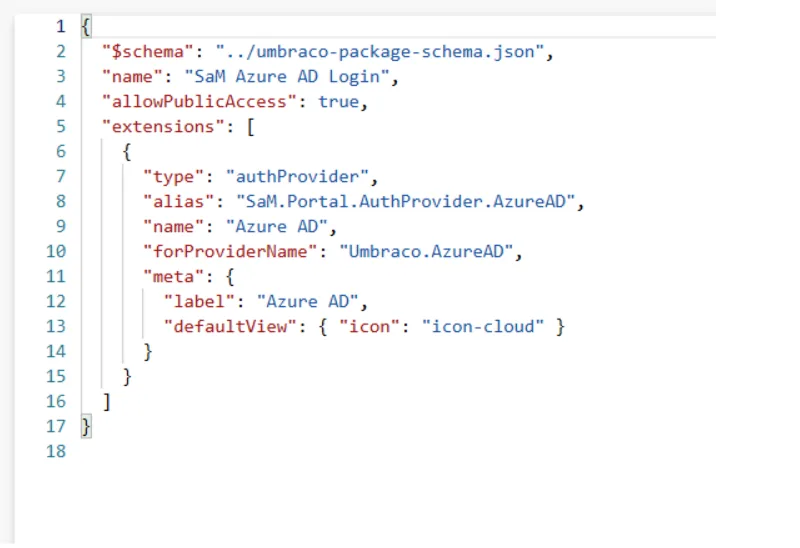
The final solution was to add a custom authentication plugin configured through a YML file. (You can move this step to the end — that’s when we handled it too.)
Example: Description of our provider
We initially ran into issues where Umbraco wouldn’t recognize the plugin definition. After some trial and error, we found that maintaining a strict folder structure and file format was crucial.
We followed this official guide:
The way the back-office authentication provider is defined has also changed.
We temporarily disabled it to stay focused on completing the upgrade, and only updated the authentication setup when we reached version 16.
Until then, we simply commented out all authentication-related code and reverted to basic login authentication.
Since this project used Azure AD (now Microsoft Entra ID), we eventually had to rewrite the integration.
Upgrading to Umbraco 15
Compared with the previous step, the upgrade to version 15 was much smoother.
First, update the NuGet packages to the latest version 15 of both Umbraco and uSync. After that, you’ll probably start seeing a series of errors.
Next, comment out all the problematic “red” sections in the code and temporarily disable Razor Page compilation, as mentioned earlier, to regenerate the publish models. Once that’s done, uncomment the code and start fixing the remaining errors.
Finally, remove the parsing logic we discussed earlier, which seemed to be a quirk specific to version 14.
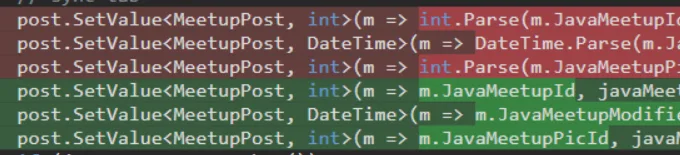
The types were restored in the published models. At this stage, we also started configuring our TipTap rich-text editor, but we won’t go into detail here, since this setup is highly project-specific. Here you can find the official documentation.
Upgrading to Umbraco 16
Update the NuGet packages to the latest version 16 of both Umbraco and uSync. A few errors are likely to show up.
Then, repeat the publish models trick mentioned earlier to rebuild them and continue with the upgrade process.
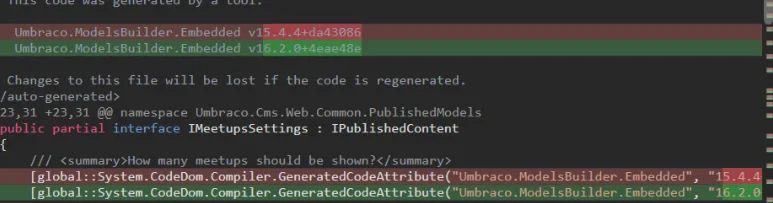
Content service changes in version 16
In this version, the content service removed the combined SaveAndPublish option and split it into two separate methods: Save and Publish. With these methods you also need to specify the culture for which the operation should be performed. This gives you the flexibility to perform several saves first and only publish at the very end, which can be very convenient in many scenarios (ours included).
If you haven’t already switched your editors from TinyMCE to TipTap, Umbraco 16 will effectively force you to do so, because the TinyMCE UI is no longer available in this version.
This is also the point where we implemented our authentication provider as an Umbraco Plugin, using the approach described earlier for integrating with external authentication (in our case, Microsoft Entra ID).
Lessons Learned
After completing the migration, several key lessons became clear.
The hardest step is upgrade from 13 to 14
Most of the breaking changes occur at this stage, so version 14 turned out to be the most incompatible with the previous version among all the upgrades described in this article. During this transition we encountered several major changes, including:
- macros removed
- nested types replaced
- editor changes
- authentication integration breaking and requiring updates
Compared to the later upgrades (14 → 15 → 16), this step required significantly more effort and adjustments.
Automate content migration
Writing a custom migration job saved enormous manual effort. Whenever possible, use existing migration tools, we relied on several of them during our upgrade. However, if no suitable tool is available, it is often worth building your own automation rather than updating thousands of content items manually.
Use database checkpoints
Create database backups after each successful upgrade step. These intermediate checkpoints allow you to roll back to the previous working stage if something breaks, instead of restarting the entire migration from the very beginning. These are like save points in a game, they significantly reduce the risk and effort involved in a long upgrade process.
Expect localization issues
Language codes and culture formats may change between versions. During our upgrade, we also discovered that one of the cultures used in our portal had become invalid in the newer Umbraco version. We are not sure how common this issue is, but it’s something to be aware of, as similar localization inconsistencies may appear during your upgrade process.
Upgrade tools early
Moving to new editors and components early makes later upgrades easier. It’s also important not to postpone upgrades for several versions, as jumping across multiple releases at once increases risk. The larger the version gap, the more breaking changes accumulate, making the upgrade more time-consuming and increasing the chance of missing important migration steps.
Bonus: Upgrading to Umbraco 17 and .NET 10
Step 1: Upgrade to .NET 10
The first step is to upgrade your project to .NET 10. You can find all breaking changes here.
At the very beginning, we also decided to migrate our solution file from .sln to .slnx, which significantly simplifies solution management. This format was introduced with .NET 9.2.
To migrate, simply run dotnet solution migrate:

Instead of a 50+ line .sln file full of GUID references, you get a much cleaner file with around 10 lines.
At the same time, don’t forget to:
- update all CI/CD pipelines to use .slnx
- switch to .NET 10 in your build environment
- remove the old .sln file (after verifying everything works correctly)
After that, update all projects to:
Step 2: Update dependencies
Next, update all dependent NuGet packages to their latest 10.0-compatible versions.
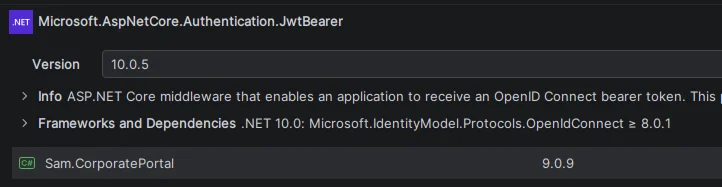
One breaking change we encountered was related to Swashbuckle.AspNetCore.
Step 3: Fix ICU runtime issue
After resolving .NET 10-related issues and attempting to run the project, we encountered the following error:
Failed to load app-local ICU: icuuc68.2.0.9.dll
   at System.Environment.FailFast(System.Runtime.CompilerServices.StackCrawlMarkHandle, System.String, System.Runtime.CompilerServices.ObjectHandleOnStack, System.String)
   at System.Environment.FailFast(System.Threading.StackCrawlMark ByRef, System.String, System.Exception, System.String)
   at System.Environment.FailFast(System.String)
This is a known issue in Umbraco.
It is likely related to incomplete support for .NET 10 in Umbraco. We fixed it by updating the ICU version in the .csproj file:
<RuntimeHostConfigurationOption Include="System.Globalization.AppLocalIcu" Value="68.2.0.9" />replaced with:
<RuntimeHostConfigurationOption Include="System.Globalization.AppLocalIcu" Value="72.1.0.3" /> The version must match the installed ICU package.
Step 4: Fix minor breaking changes
After this fix, we only had 3 build errors across 2 files.

Here we just need to replace this:
var backOfficePath = globalSettings.Value.GetBackOfficePath(hostingEnvironment)
with this:
var backOfficePath = hostingEnvironment.GetBackOfficePath()

Step 5: Navigation API adjustment
Another change required adjusting navigation logic.
Final version:
               _navigationQueryService.TryGetRootKeys(out var rootKeys);
                var root = rootKeys
                    .Select(key => umbracoContextReference.UmbracoContext.Content.GetById(key))
                    .FirstOrDefault(x => x?.UrlSegment() == "unrestricted-pages");
                return new Home(root, _publishedValueFallback);
Step 6: Date handling changes (important)
Umbraco finally fixed an issue with dates stored in SQL that we faced as well, since we store and manage events for multiple locations and time zones. We had an issue in previous versions where Umbraco always tried to reconvert our stored dates, even though we had already stored them in a specific time zone, but Umbraco still returned them as time zone specific datetimes marked as UTC, which created a lot of confusion.
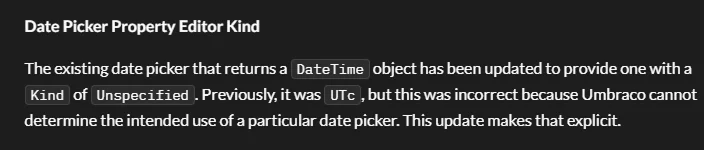
That’s why we created a helper method like this to reset UTC kind.

But after we migrated to Umbraco 17 we changed this helper just to:

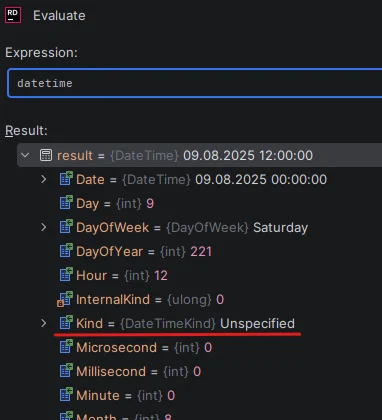
Since now all dates are returned as Unspecified, we can convert them to any time zone we need without any recalculations, even if they were created before the Umbraco 17 update!
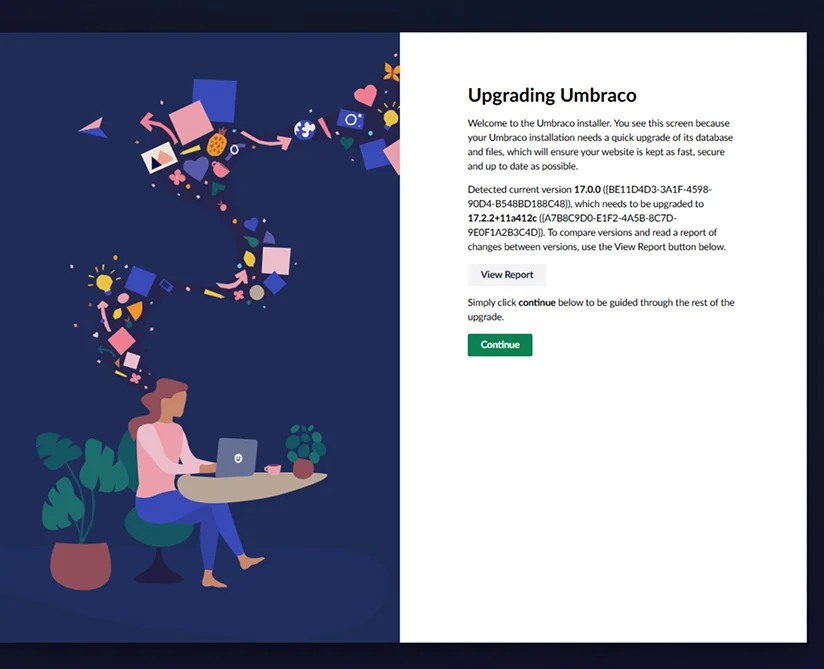
Step 7: Run Umbraco upgrade
After launching the application, you will see the standard Umbraco upgrade installation page.
Click Continue, the process is straightforward and should not cause issues.
Step 8: Final cleanup
After the upgrade, don’t forget to regenerate published models and rework obsolete methods, the amount of which is definitely increased in Umbraco 17. We encountered around 60+ warnings after the first build. This is important because many of these obsolete methods will be removed entirely in Umbraco 18.
Final Thoughts
Upgrading to Umbraco 16 and then to version 17 turned out to be much faster and smoother than all previous ones. Compared to the complexity of the Umbraco 13 to 14 migration, this step required significantly less effort.
Another key takeaway is: don’t delay upgrades. The longer you wait, the more breaking changes accumulate, making the eventual jump across multiple versions far more painful and time-consuming. It’s always better to upgrade incrementally rather than face a large, complex migration later.
And if you’ve already skipped several versions, don’t worry. The team at SaM Solutions is ready to take on that complexity and handle the upgrade for you.

If you’re preparing to move to Umbraco 17, a well-structured migration strategy can save you weeks of rework and prevent critical issues with content and functionality.
Vadim Birkos, Senior Full-Stack .NET Developer, AI Enthusiast